
Most people use only a fraction of what their phone can actually do — and many of the most useful phone features you should be using are already built in and waiting to be turned on.
Modern smartphones include tools for managing focus, extracting text from images, scanning documents, controlling storage, and making everyday tasks significantly faster. Most of these features are buried inside settings menus or default apps that people rarely open, which is why so many go unnoticed.
This guide covers the phone features you should be using on both iPhone and Android, what each one does, and exactly where to find it.
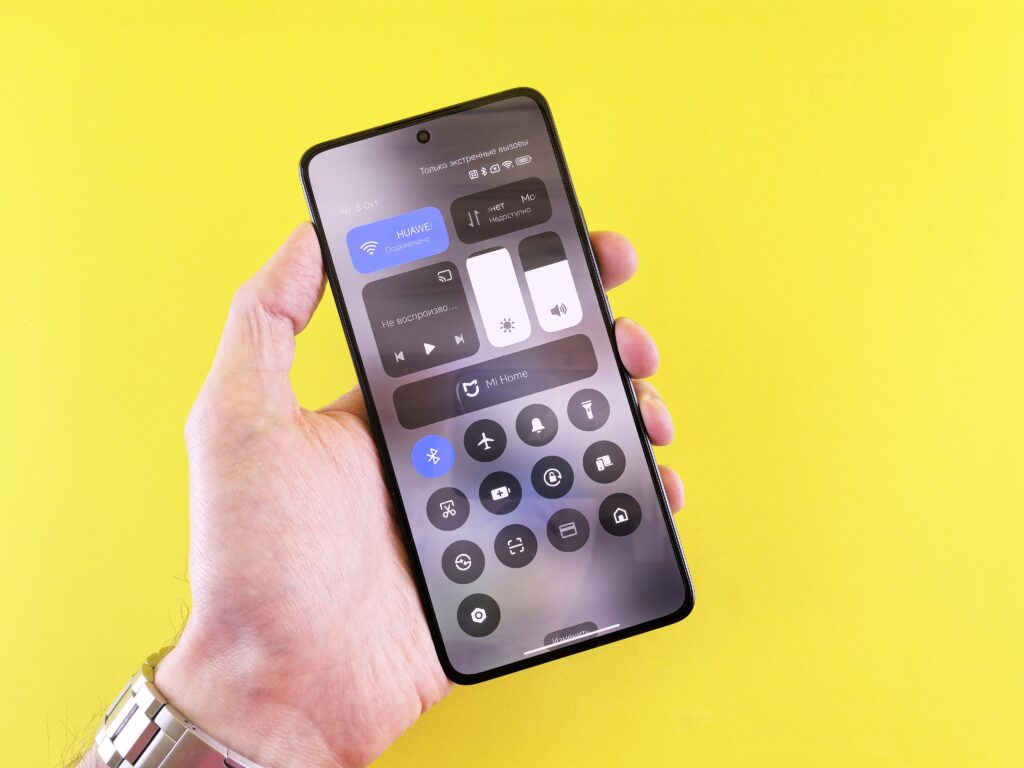
Phone features you should be using for focus and notifications
The phone features most people are missing are not hidden because they are difficult to use. They are hidden because phones do not advertise them prominently, and most people only explore their settings when something goes wrong.
The result is that millions of people download third-party apps to do things their phone can already handle natively — scanning documents, filtering notifications, extracting text from photos, or clearing storage space.
Knowing where to look changes that. The phone features you should be using are almost always faster, more integrated, and more reliable than separate apps because they are built directly into the operating system.
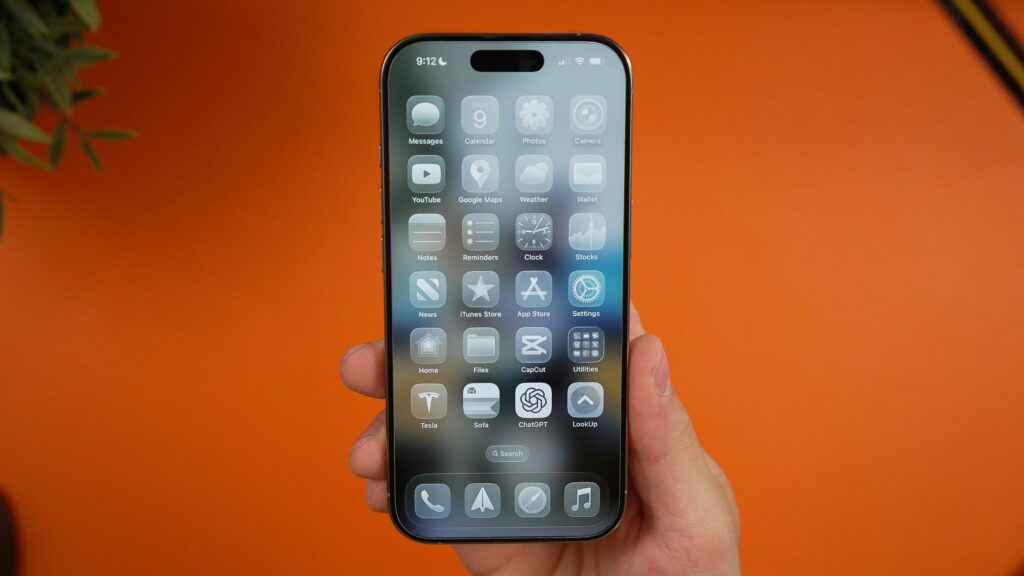
Focus Mode — one of the phone features you should be using first
One of the most practical phone features you should be using is Focus Mode on iPhone or Digital Wellbeing on Android. Both let you control which apps and people can interrupt you during specific times or activities.
On iPhone, Focus lets you create custom modes for work, sleep, driving, exercise, or personal time. Each mode can be set to allow notifications only from specific contacts or apps, which means your phone stays quiet during the times that matter without you having to switch it to silent manually.
You can also set Focus to turn on automatically based on time, location, or the app you are using — so your work Focus activates when you open your laptop at the office, or your sleep Focus turns on when you get into bed.
iPhone Focus settings: https://support.apple.com/guide/iphone/set-up-a-focus-iphd6288a67f/ios
On Android, Digital Wellbeing includes Focus Mode, which lets you pause distracting apps temporarily so they cannot send notifications or be opened until you turn Focus Mode off. It also includes app timers, bedtime mode, and dashboard views of how much time you spend on each app.
Android Digital Wellbeing: https://support.google.com/android/answer/9346420?hl=en
Live Text and Google Lens — extract text from any image
Another set of phone features you should be using involves reading and copying text from images, signs, documents, and handwritten notes using your camera.
On iPhone, Live Text is built into the camera and the Photos app. When you point your camera at printed or handwritten text, a small icon appears that lets you select, copy, translate, or look up the text directly — without taking a photo first. In the Photos app, you can tap and hold any text that appears in a saved image to copy it.
This is useful for copying a Wi-Fi password from a label, capturing a phone number from a poster, translating a menu in another language, or saving an address from a business card without typing anything manually.
Apple Live Text: https://support.apple.com/guide/iphone/use-live-text-interact-with-content-in-a-photo-video-or-image-iph37fdd714b/ios
On Android, Google Lens provides the same functionality and goes further. It can identify objects, plants, and products in photos, search for similar items online, translate text in real time through the camera, and copy text from images into any app.
Google Lens: https://lens.google
Document scanning — built into apps you already have
Many people still photograph documents with their camera and end up with skewed, poorly lit images that are difficult to read or share. Both iPhone and Android include proper document scanning tools that produce clean, flat, well-cropped scans — and most people have never tried them.
On iPhone, the Notes app has a built-in document scanner. Open a new note, tap the camera icon, and select Scan Documents. The app automatically detects the edges of the document, corrects the perspective, and saves it as a clean PDF. This works for receipts, forms, letters, ID documents, handwritten notes, and anything else that needs to be captured cleanly.
Scan documents with iPhone Notes: https://support.apple.com/en-au/guide/iphone/iph653f28965/ios
On Android, Google Drive includes document scanning directly from the app. Open Google Drive, tap the plus button, and select Scan. The camera will detect and crop the document automatically, and the result is saved as a searchable PDF in your Drive.
Scan documents with Google Drive: https://support.google.com/drive/answer/3145835?hl=en
Storage management — free up space without deleting everything
Storage problems are one of the most common frustrations with smartphones, and both iPhone and Android include built-in tools for managing space more intelligently — tools that many people overlook in favour of just deleting photos manually.
On iPhone, the storage management tool under Settings → General → iPhone Storage shows a breakdown of what is using space, with specific recommendations for freeing it up. One of the most useful options is Offload Unused Apps, which removes apps you have not opened recently but keeps their data so you can restore them later without losing anything.
Manage iPhone storage: https://support.apple.com/guide/iphone/manage-storage-on-iphone-iph47c931112/ios
On Android, Files by Google is a free app from Google that scans your device for junk files, duplicate photos, large files, and downloaded content that is no longer needed. It shows exactly what is taking up space and lets you delete it in bulk with one tap.
Files by Google: https://play.google.com/store/apps/details?id=com.google.android.apps.nbu.files
Android storage help: https://support.google.com/android/answer/7431795?hl=en
Accessibility features — useful for everyone, not just accessibility needs
Some of the most underused phone features are found in the Accessibility settings — and many of them are genuinely useful for everyday tasks even if you do not have any specific accessibility requirements.
On iPhone, features worth exploring include Back Tap (which lets you assign actions to a double or triple tap on the back of the phone), Spoken Content (which reads selected text or entire screens aloud), and Reachability (which pulls the top of the screen down so you can reach it with one hand on larger phones).
Apple Accessibility: https://www.apple.com/accessibility/iphone
On Android, accessibility options include Select to Speak (which reads text aloud when you tap it), Magnification (which lets you zoom into any part of the screen), and one-handed mode on many devices.
Android Accessibility: https://www.android.com/accessibility/
The iPhone keyboard trackpad — precise cursor movement
One specific iPhone feature worth highlighting separately is the keyboard trackpad, which most iPhone users have never discovered.
When you press and hold the spacebar while the keyboard is open, the keyboard surface turns into a trackpad that lets you slide your finger to move the cursor precisely through your text. This makes editing messages, emails, and notes significantly faster than trying to tap the exact spot where you want the cursor to go.
For a full explanation of how it works and how to use text selection with the same feature, take a look at our detailed guide on the iPhone keyboard trackpad.
Camera grid lines — a simple toggle for better photos
Another built-in phone feature worth turning on is the camera grid, which helps you apply the rule of thirds when composing photos.
Enabling grid lines takes about ten seconds in your camera settings and can noticeably improve the composition of everyday photos by giving you a visual guide for placing subjects off-centre.
For step-by-step instructions for both iPhone and Android, take a look at our guide on how to turn on camera grid lines for better photos.
Final thoughts
The phone features you should be using are already on your device. Focus Mode, Live Text, document scanning, storage management, and accessibility tools are all built in and ready to use — they just need to be turned on or explored.
Spending a few minutes in your phone’s settings to enable these features is one of the most practical ways to get more out of a device you already carry everywhere.