
Forgetting where you parked your car is one of those problems that feels minor until it actually happens to you. The save parking location feature in Google Maps lets you save exactly where your car is the moment you step out — and find it again with walking directions when you are ready to leave.
Google Maps has a built-in save parking location feature that lets you save exactly where your car is the moment you step out.
Google Maps has a built-in parking location feature that lets you save exactly where your car is the moment you step out. It takes about five seconds to use, works on both iPhone and Android, and can save a lot of frustration later — especially in large parking garages, busy shopping centres, airports, or unfamiliar streets.
For more detail, Google’s official support page covers this feature here: https://support.google.com/maps/answer/7047826
Why it is so easy to forget where you parked
Most people assume they will remember where they left their car. In practice, this rarely works as well as expected.
After spending an hour or two walking through a shopping mall, watching a game at a stadium, or navigating a busy airport, the memory of where you entered the parking area can blur quickly. Large parking structures often look identical on every level and in every row, which makes the problem worse.
Pressing the key fob and listening for a beep is fine in a small car park. In a multi-storey garage or a sprawling outdoor lot, it is not a reliable strategy.
Google Maps solves this with a feature that is already on your phone and ready to use.
How to Save Your Parking Location on iPhone
When you arrive and park your car, open the Google Maps app before you walk away.
Tap the blue dot that shows your current location on the map. A menu will appear from the bottom of the screen. Tap “Save parking” and the app will drop a pin at your exact location.
The saved parking spot will appear on your map as a small P icon, and you will also see a notification at the bottom of the screen confirming the location has been saved.
Google Maps will keep this saved until you remove it manually, so you do not need to rush back immediately.
For reference, Apple Maps offers a similar feature as well, but the Google Maps version works across both iPhone and Android, which makes it more consistent if you switch between devices.
For more detail, Google’s official support page covers this feature here: https://support.google.com/maps/answer/7047826
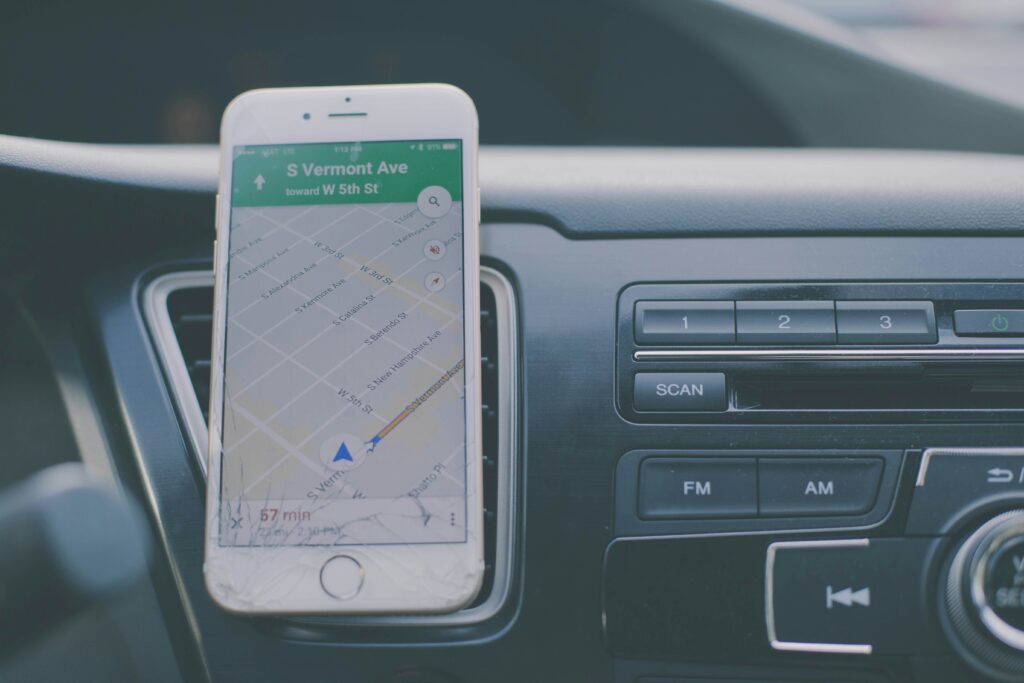
How to save your parking location on Android
The process on Android is identical.
Open Google Maps, tap the blue dot showing your current location, and select “Save parking” from the menu that appears. The parking pin will be saved to your map straight away.
On some Android devices, Google Maps may also detect automatically when you have parked — particularly if your phone was connected to your car via Bluetooth and the connection just dropped. When this happens, a notification may appear asking if you want to save your parking location. Tapping it saves the spot without opening the app manually.
How to add notes and a photo to your saved parking spot
Google Maps also lets you add extra details to your saved parking location, which is useful in large or complex parking structures.
After saving your parking spot, tap the P icon on the map or the saved parking banner at the bottom of the screen. From there, you can:
- Add a note such as “Level 3, Row B” or “Near the lifts on the north side”
- Set a parking timer to remind you when your paid parking is about to expire
- Add a photo of your surroundings to help you recognise the area when you return
These extra details can make a significant difference in a parking garage where every level looks the same.
How to find your car when you are ready to leave
When you are ready to return to your car, open Google Maps and look for the P icon on the map, or tap the saved parking banner if it is still showing at the bottom of the screen.
Tap “Directions” and Google Maps will give you walking directions back to your car from wherever you are. This is particularly useful if you have moved far from where you parked, taken a lift to a different level, or walked through a large venue before heading back.
Once you reach your car and drive away, Google Maps will usually clear the saved parking location automatically. If it does not, you can remove it manually by tapping the P icon and selecting “Clear”.
When this feature is most useful
The Google Maps parking location feature is worth using any time you park somewhere large, unfamiliar, or busy. It is especially helpful at:
- Multi-storey parking garages where levels and rows look identical
- Large shopping centres with multiple entry and exit points
- Airports where you may not return to your car for several days
- Stadiums and event venues where large crowds make navigation confusing
- Downtown areas where street parking can be several blocks away
- Unfamiliar cities or neighbourhoods where landmarks are hard to remember
Even in familiar locations, using this feature takes only a few seconds and removes any uncertainty about where you left the car.
Final thoughts
The Google Maps parking location feature is one of those tools that is easy to overlook because most people never go looking for it. But once you start using it, it quickly becomes a habit that saves real time and frustration.
The next time you park somewhere and step out of the car, open Google Maps, tap the blue dot, and save your parking location before you walk away. It takes five seconds and you will always know exactly where to find your car.
For more practical tips on getting more out of Google Maps and other everyday apps, take a look at our guide on Phone Features You’re Not Using but Should.