
Getting a storage full warning on your phone does not mean you have to start deleting photos, messages, or apps you actually use. There are smarter ways to free up storage without deleting everything that matters.
Most phones accumulate a significant amount of space-wasting clutter over time — cached app data, duplicate photos, old downloads, backed-up media that is still stored locally, and temporary files that serve no purpose. Clearing this kind of waste first is almost always faster and less painful than manually deciding what to delete from your library.
This guide covers how to free up storage without deleting everything on both iPhone and Android, starting with the steps that recover the most space with the least effort.
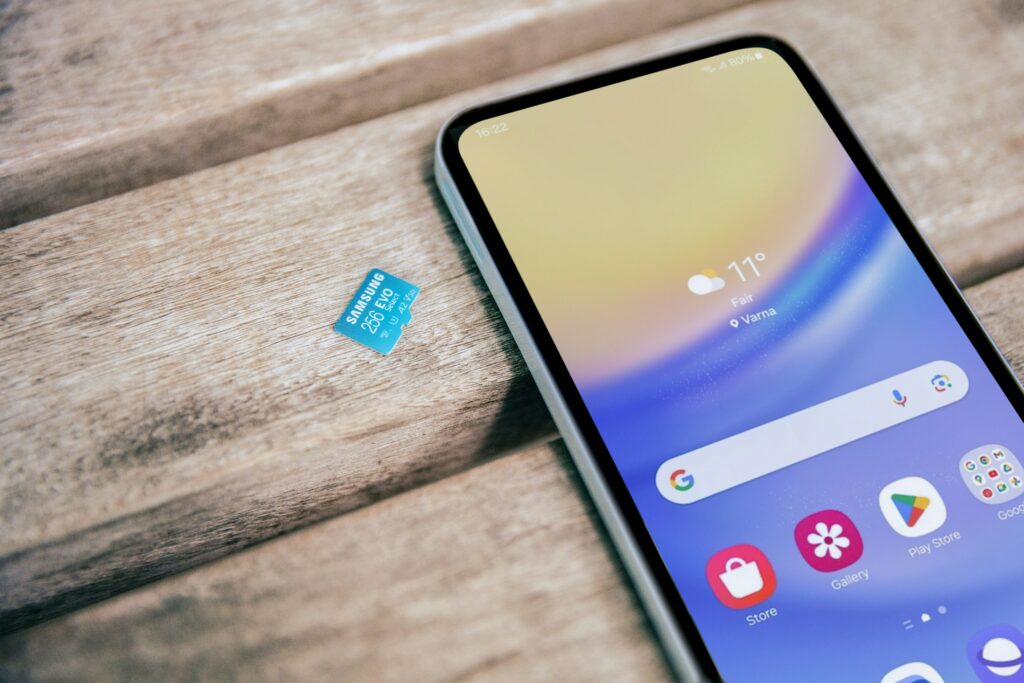
Why phone storage fills up faster than expected
Understanding what is actually taking up space makes it much easier to free up storage without deleting everything you care about.
Most people assume photos and videos are the main culprit, and while they do take up significant space, they are rarely the whole story. Phone storage tends to fill up from a combination of sources that build up quietly over time.
Common causes include cached data from apps like streaming services, social media platforms, and browsers that store temporary files locally; message attachments including photos, videos, voice messages, and GIFs that accumulate in messaging apps over months or years; duplicate and similar photos created by burst mode, screenshot habits, or downloading images that already exist in your library; downloads that were needed once and never cleared; and apps that are installed but rarely or never opened.
Knowing this means you can target the waste before touching anything valuable.
How to free up storage on iPhone without deleting everything
iPhone includes several built-in tools that can recover significant storage space without requiring you to permanently delete important content.
Check what is actually using space
The first step is to see a breakdown of what is taking up storage on your device.
Go to Settings → General → iPhone Storage. This screen shows a colour-coded bar at the top with a breakdown by category, followed by a list of apps sorted by the amount of space they are using. Scroll through this list — apps near the top are often the ones using far more space than you would expect, particularly social media apps, streaming services, and apps that store large amounts of downloaded content.
Apple’s storage management page: https://support.apple.com/guide/iphone/manage-storage-on-iphone-iph47c931112/ios
Use Offload Unused Apps
On the same iPhone Storage screen, you will often see a recommendation to enable Offload Unused Apps. When this is turned on, iPhone automatically removes apps you have not opened recently, but keeps all their data intact. If you reinstall the app later, it picks up exactly where you left off.
This is one of the most effective ways to free up storage without deleting everything because it removes the app itself — which can be hundreds of megabytes — without losing any of your personal data associated with it.
You can also offload individual apps manually from the same storage screen by tapping any app and selecting Offload App.
Enable Optimize iPhone Storage for photos
If your iPhone is connected to iCloud Photos, you can enable Optimize iPhone Storage, which keeps smaller, device-resolution versions of your photos and videos on your phone while storing the full-resolution originals in iCloud.
This can recover a substantial amount of space — often several gigabytes — without removing a single photo from your library. Every image remains accessible and downloads in full resolution when you open it. The only requirement is sufficient iCloud storage, which starts at a low monthly cost.
How to enable it: Settings → Photos → select Optimize iPhone Storage
Apple’s iCloud Photos guide: https://support.apple.com/en-us/105061
Clear message attachments
Messaging apps are one of the most overlooked sources of storage waste on iPhones. Photos, videos, voice messages, GIFs, and stickers sent and received in Messages and other apps accumulate over time and can easily use several gigabytes of space.
In the Messages app, you can review and delete large attachments without deleting the conversations themselves. Go to Settings → General → iPhone Storage → Messages and look for the Documents, Photos, and Videos sections to see what is stored there and remove individual items or categories.
Review and delete large individual files
Still on the iPhone Storage screen, scroll down to find individual apps and tap them to see what files they are storing. Some apps — particularly those used for downloading content, recording audio or video, or storing documents — can accumulate large files that are no longer needed.
Reviewing these individually and deleting files you no longer need is one of the most targeted ways to recover space quickly.
How to free up storage on Android without deleting everything
Android includes built-in storage tools and access to Files by Google, which makes it straightforward to identify and remove space-wasting clutter without touching important content.
Check storage breakdown in Settings
Go to Settings → Storage (the exact path varies slightly depending on your device and Android version, but Storage is usually found under Settings or Settings → Device Care).
This screen shows how your total storage is divided across categories including apps, photos and videos, audio, downloads, and cached data. Tapping each category gives you more detail and, in many cases, the option to review and delete specific items.
Android storage help: https://support.google.com/android/answer/7431795?hl=en
Use Files by Google to find and remove waste
Files by Google is a free app from Google that is one of the most practical tools for freeing up storage without deleting everything on Android. It scans your device and identifies specific types of clutter that are safe to remove.
It can find and help you delete junk files and temporary data, duplicate photos, blurry or low-quality images, old screenshots, large files you may have forgotten about, and apps that have not been opened in a long time.
Each category is shown separately with the total space it is using, and you can review the items before deleting anything. This makes it much easier to recover space confidently rather than deleting things blindly.
Files by Google: https://play.google.com/store/apps/details?id=com.google.android.apps.nbu.files
Back up photos and videos with Google Photos
If photos and videos are taking up significant space, enabling Google Photos backup means your media is safely stored in the cloud and you can remove the local copies from your device without losing access to them.
Once backup is confirmed, you can use the Free Up Space feature in the Google Photos app, which removes photos and videos from your device that have already been backed up — recovering space without deleting anything from your library.
Google Photos: https://photos.google.com
Clear app cache
Many apps store temporary data locally to load faster, but this cached data can accumulate significantly over time. On Android, you can clear the cache for individual apps by going to Settings → Apps, selecting an app, and tapping Clear Cache.
Social media apps, streaming apps, and browsers tend to accumulate the most cache data. Clearing the cache does not delete your account data, settings, or downloads — it only removes the temporary files the app has stored locally.
What to clean first to recover the most space quickly
If you want to free up storage without deleting everything and are looking for the fastest results, work through this order:
Start with duplicate and blurry photos — these are pure waste and the easiest to remove without any loss. Then clear app cache on the heaviest apps. Next, review downloads and large files that are no longer needed. Then check message attachments which build up silently over time. After that, offload unused apps to remove the app files while keeping data. Finally, enable cloud photo optimization to move full-resolution media to the cloud while keeping access to everything.
Working through this list in order typically recovers several gigabytes without requiring you to make difficult decisions about content you actually want to keep.
Final thoughts
You do not need to permanently delete photos, contacts, or important files just because your storage is full. The most effective way to free up storage without deleting everything is to target the waste that accumulates invisibly over time — cached data, duplicate photos, old downloads, and app files from apps you no longer use.
Both iPhone and Android include the tools to do this without any third-party software. It just takes a few minutes to go through the right settings.
For more practical tips on getting more out of your phone’s built-in features, take a look at our guide on Phone Features You’re Not Using but Should.