
Editing text on an iPhone can feel surprisingly awkward — especially when you need to move the cursor to an exact spot.
The iPhone keyboard trackpad is a built-in feature that most people never discover. Once you know how to use it, placing the cursor precisely becomes much faster and less frustrating.
Why moving the cursor on iPhone feels difficult
Typing on an iPhone is usually quick and comfortable. But editing text is a different experience.
When you want to fix a typo or insert a word in the middle of a sentence, tapping the screen to place the cursor does not always land where you intended. The text can be tightly spaced, and small targets are hard to hit accurately on a small screen.
Many people end up tapping repeatedly, nudging the cursor one character at a time, or giving up and retyping the whole word. None of these feel efficient.
The good news is that the iPhone already includes a built-in solution that most people never turn on.
What the iPhone keyboard trackpad is
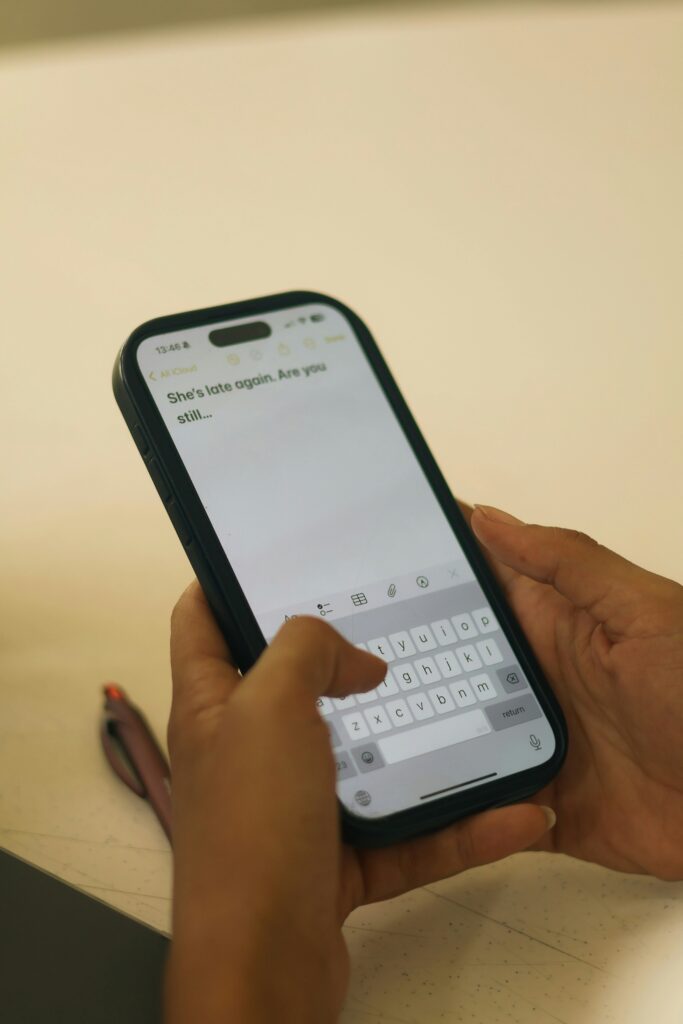
The iPhone keyboard has a hidden trackpad mode that lets you slide your finger across the keyboard surface to move the cursor through your text.
Instead of tapping directly on the screen to reposition the cursor, you use the keyboard itself as a control surface — similar to how a laptop trackpad works.
This gives you much finer control over where the cursor lands, and it works in any app where the keyboard appears: Messages, Notes, Mail, Safari, and more.
How to activate the iPhone keyboard trackpad
Using the feature is straightforward.
Open any app where the iPhone keyboard is visible. Place your finger on the spacebar and press and hold it for about one second.
The keyboard keys will fade slightly, which is the visual signal that trackpad mode is now active. While keeping your finger held down, slide it in any direction to move the cursor through your text.
Lift your finger when the cursor is in the right position.
That is the entire process. No settings to change, no app to download.
For more detail, Apple’s official support page covers text editing on iPhone here: https://support.apple.com/guide/iphone/enter-and-edit-text-iph6253bef2/ios
How to select text using the same feature
The iPhone keyboard trackpad can also be used to select text, not just move the cursor.
While holding the spacebar with one finger to activate trackpad mode, tap the screen with a second finger. This switches the feature into text selection mode. You can then continue sliding the first finger to expand or shrink the selection.
Once you have highlighted the text you want, you can cut, copy, replace, or delete it using the options that appear above the selection.
This combination — moving the cursor and selecting text — makes the keyboard trackpad one of the most practical hidden features on the iPhone for anyone who writes or edits text regularly.
Does this work on iPad?
Yes. The same feature works on iPad with identical steps.
Press and hold the spacebar, wait for the keys to fade, then slide to move the cursor. Tap with a second finger to begin selecting text.
On iPad, the keyboard is larger, which makes the spacebar easier to hold and the trackpad motion easier to control.
Where this feature is most useful
The iPhone keyboard trackpad is helpful in a wide range of everyday situations:
- Correcting a typo in the middle of a long message without retyping
- Editing a sentence in Notes or a draft email
- Selecting a specific word or phrase to replace
- Moving through a paragraph carefully to find the right insertion point
- Making quick edits in any app without switching to a separate editing tool
Once you start using it, it tends to become a habit. Most people who discover this feature find it difficult to go back to tapping the screen directly.
Final thoughts
The iPhone keyboard trackpad is one of those features that is easy to miss because the iPhone never tells you it exists. But it solves a real problem that most iPhone users deal with every day.
If moving the cursor on your iPhone has ever felt imprecise or frustrating, try pressing and holding the spacebar the next time you are editing text. It takes a moment to get used to, but the control it gives you is a noticeable improvement.
For more hidden iPhone and phone features worth knowing, take a look at our guide on Phone Features You’re Not Using but Should.